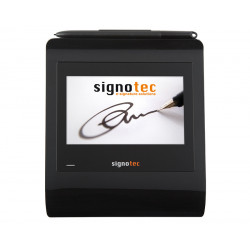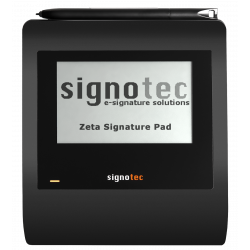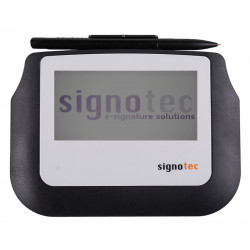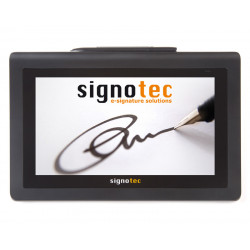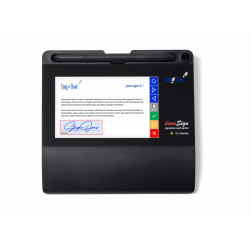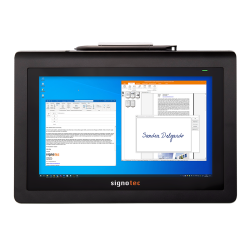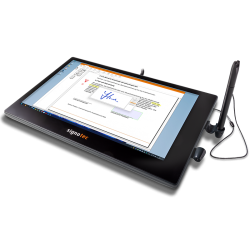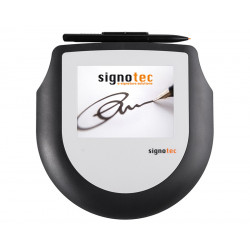
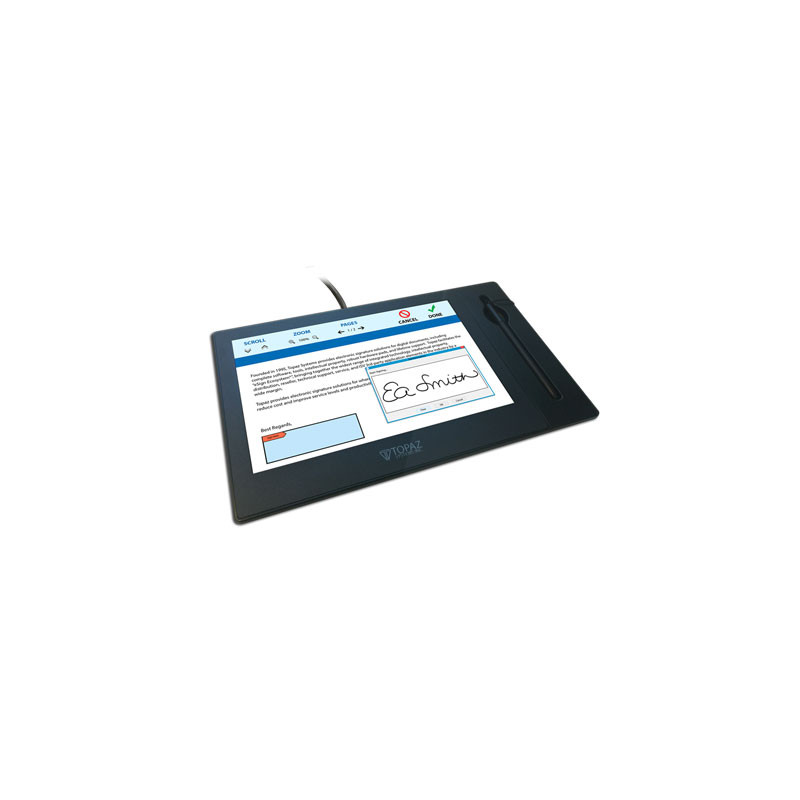
The Topaz GemView 10 is a 10.1-inch tablet display designed primarily for displaying documents and capturing handwritten electronic signatures. The device works as an additional computer monitor with an active pen-enabled surface. It is not a standalone tablet — it does not have its own operating system, user storage, or applications running independently of a computer.
Topaz Systems GemView 10 Tablet Display
The Topaz GemView 10 is a 10.1-inch tablet display designed primarily for displaying documents and capturing handwritten electronic signatures. The device works as an additional computer monitor with an active pen-enabled surface. It is not a standalone tablet — it does not have its own operating system, user storage, or applications running independently of a computer.
A PDF document, form, information material, advertisement, or application interface can be displayed on the screen, while the user can sign the document directly on the device surface. The signature is visible at the same time on the GemView screen and on the operator’s computer monitor. The manufacturer positions the device between a traditional small signature pad and a full-size pen display.
GemView 10 can be used in:
customer service points,
banks and financial institutions,
healthcare facilities,
public administration offices,
reception and registration desks,
insurance companies,
retail points,
document workflow systems,
workstations where contracts or forms must be signed on screen.
The device can also be used as a small additional display for presenting instructions, videos, advertisements, or messages to customers.
Available Versions
The manufacturer lists two main versions:
TD-LBK101VA-USB-R — standard version operated with an electromagnetic pen,
TD-LBK101VT-USB-R — “Touch” version additionally supporting finger touch.
Finger touch functionality is therefore not available in every unit. In the standard version, interaction with the screen is performed using the pen.
Technical Specifications
Display
screen size: 10.1 inches,
panel type: TFT LCD with LED backlight,
native resolution: 1280 × 800 pixels,
glass: 8H hardened glass,
coating: anti-glare, scratch-resistant, and designed to reduce fingerprints,
typical brightness: 160 cd/m²,
maximum brightness: 200 cd/m²,
viewing angles: 170° horizontally and 170° vertically,
response time: typically 25 ms, maximum 50 ms,
orientation: landscape or portrait, depending on Windows configuration.
Brightness of 160–200 cd/m² is sufficient for customer service workstations, but it is relatively low compared with modern office monitors and consumer tablets.
Pen
technology: electromagnetic,
communication: wireless,
pen power supply: battery-free,
pressure sensitivity: 2,048 levels,
pen resolution: 5,080 LPI — lines per inch,
tracking rate: 200 PPS — points per second,
accuracy in the centre of the screen: ±0.5 mm,
accuracy near edges and corners: ±2 mm,
detectable pen height above the screen: 5 mm,
detectable tilt angle: ±45°,
replaceable pen tip,
active area: entire screen,
GemGuard pen with antimicrobial properties.
Pressure sensitivity allows the system to capture the dynamics and characteristics of a handwritten signature. However, this does not automatically mean that every document signed on the device constitutes a qualified electronic signature. The legal status of the signature depends on the software used, the method of identifying the signer, document integrity protection, data security, and organisational procedures.
Dimensions and Weight
dimensions: 300 × 185 × 22 mm,
device weight: 0.85 kg,
package weight: approximately 1.3 kg,
integrated support stands,
Kensington security slot,
VESA-compatible mounting support.
Interface and Power Supply
computer connection: USB,
supplied cable: USB 2.0,
power supply: 5 V / 1 A via USB,
power consumption during startup: approximately 5 W,
sleep mode power consumption: below 1 W.
The device cable has two USB connectors on the computer side. The manufacturer recommends connecting both connectors to ensure stable power delivery. On computers with internal USB hubs, it may be necessary to move the connectors to different USB ports.
Operating Conditions
operating temperature: 0–50°C,
storage temperature: –10–60°C,
operating humidity: 20–80%,
storage humidity: 10–90%.
Package Contents
According to the manufacturer’s documentation, the package includes:
GemView 10 display,
USB 2.0 cable,
electromagnetic pen,
pen tether,
three replacement pen tips,
pen tip replacement tool,
installation instructions or information on downloading the required software.
Software Required for Operation
1. DisplayLink Driver
The DisplayLink driver enables GemView to operate as an additional display connected through USB. The manufacturer requires this driver to be installed on Windows computers.
After installation, the display should be configured in Windows as an extended desktop. Recommended settings include:
resolution of 1280 × 800,
“Extend these displays” mode,
landscape or portrait orientation,
correct monitor arrangement in Windows display settings.
2. GemView Driver
The GemView driver controls pen operation and transfers input data from the device surface. A computer restart is required after installation.
The manufacturer previously listed GemView driver version 5.52, updated on 19 March 2025. Because the version number may change, the latest package should always be downloaded from the manufacturer’s website.
3. Tablet Display Manager
This utility is used for:
assigning the pen to the correct monitor,
configuring screen orientation,
adjusting pressure sensitivity,
enabling or disabling Windows Ink,
mapping the pen surface to the GemView display.
In older applications, it may be necessary to disable Windows Ink so that pen input is interpreted as mouse movement.
4. Document Signing Software
Depending on the intended use, the following software may be used:
pDoc Signer — for creating, completing, signing, and editing PDF forms and documents without requiring Adobe Acrobat,
pDoc Signer Duo — for transferring PDF documents from the operator’s computer to the GemView display for signing,
Adobe Acrobat Plug-In — for signing PDF documents in Adobe Acrobat,
add-ins for Microsoft Word and Excel,
gDoc Signer — for signing documents in Google Docs and Google Sheets,
an extension for Adobe Sign,
SigTool Imager Plus — for saving a signature as an image,
SigCompare — for visually comparing signatures.
5. Software for Integrators
The manufacturer provides several SDKs — Software Development Kits — for integrating the device with custom systems:
SigPlus Pro ActiveX,
SigPlusNET Assembly,
SigPlus Pro Java,
SigPlus Pro C++,
SigPlusExtLite Browser SDK,
SigWeb Browser SDK,
SigPlus Pro Tablet.
The availability of a specific SDK, supported operating systems, and compatibility with the selected device version should be verified before starting an integration project.
The Topaz GemView 10 is a 10.1-inch tablet display designed primarily for displaying documents and capturing handwritten electronic signatures. The device works as an additional computer monitor with an active pen-enabled surface. It is not a standalone tablet — it does not have its own operating system, user storage, or applications running independently of a computer.